Before you start
- A Casefile organization, and a role that may make keys, such as admin.
- A terminal with curl, or Node.
Steps
1
Make a door key
In Casefile, open the organization menu, then Settings, then Sources and keys.
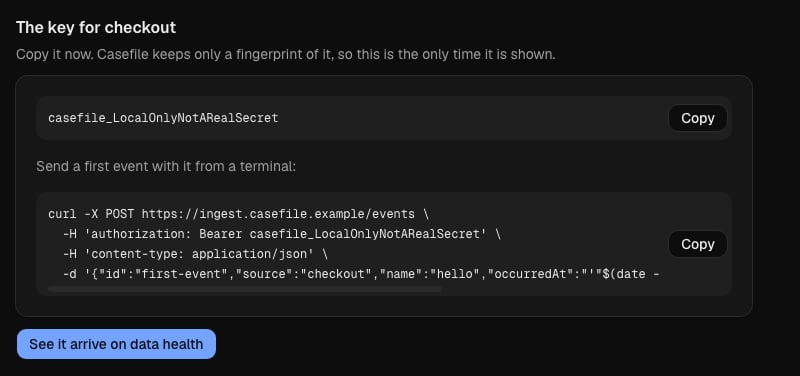
Enter checkout as the source name, and choose Make a key.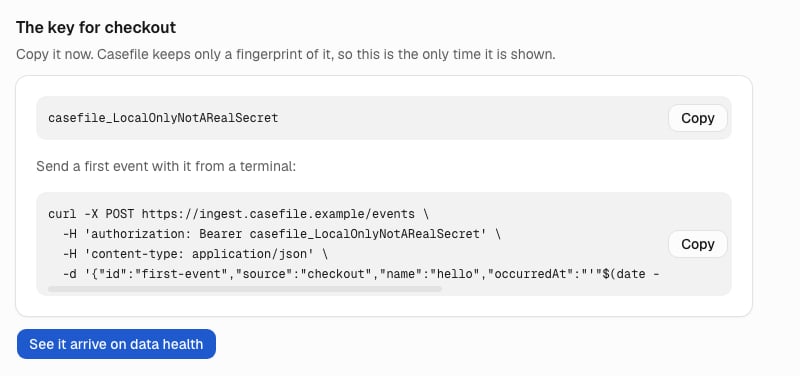
2
Keep the key where your terminal can read it
Put the key in an environment variable named
CASEFILE_KEY.
The commands below read it from there, so the key stays out of your shell history.3
Send an event
Send one event named hello from a source named checkout, with curl or with Node.The door, Casefile’s address for events, answers
202 with your event’s ID in accepted.The door can refuse a new key with unknown key for up to 5 seconds after it is made.
If it does, send the same event again.4
See it arrive
In Casefile, open Data health, and reload it if checkout is not listed yet.
The checkout source is listed with the time of its newest event.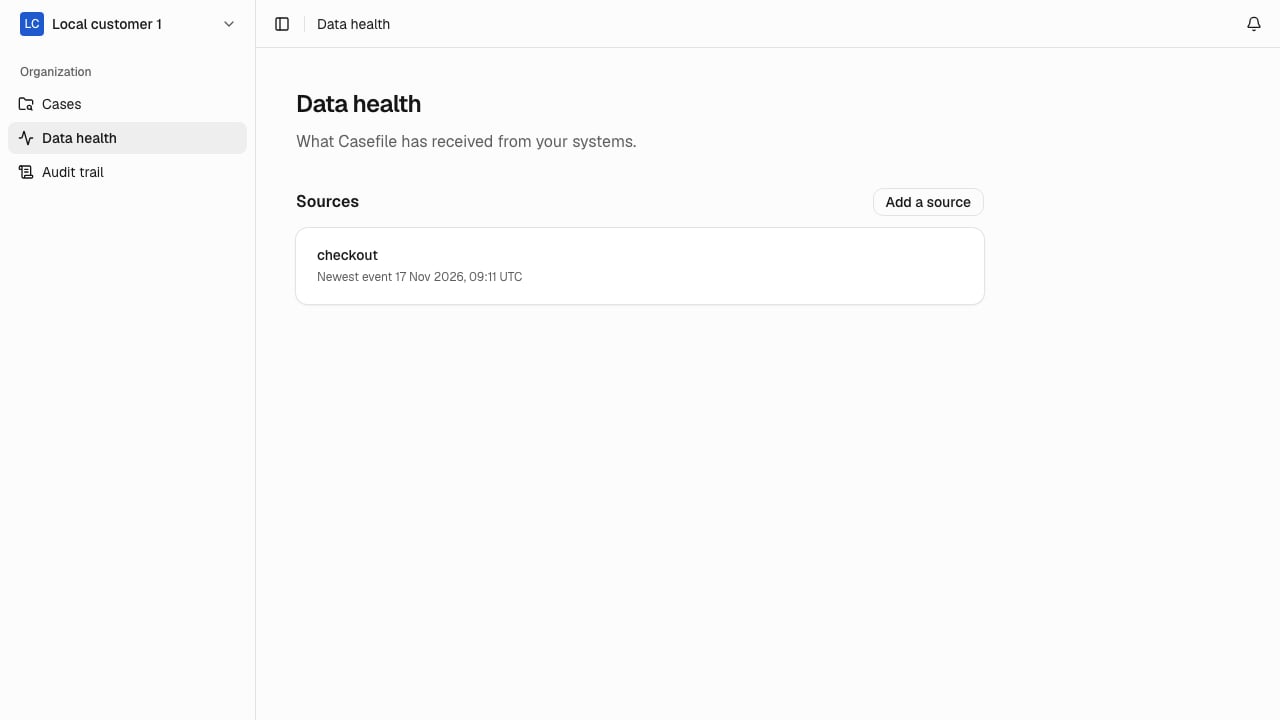
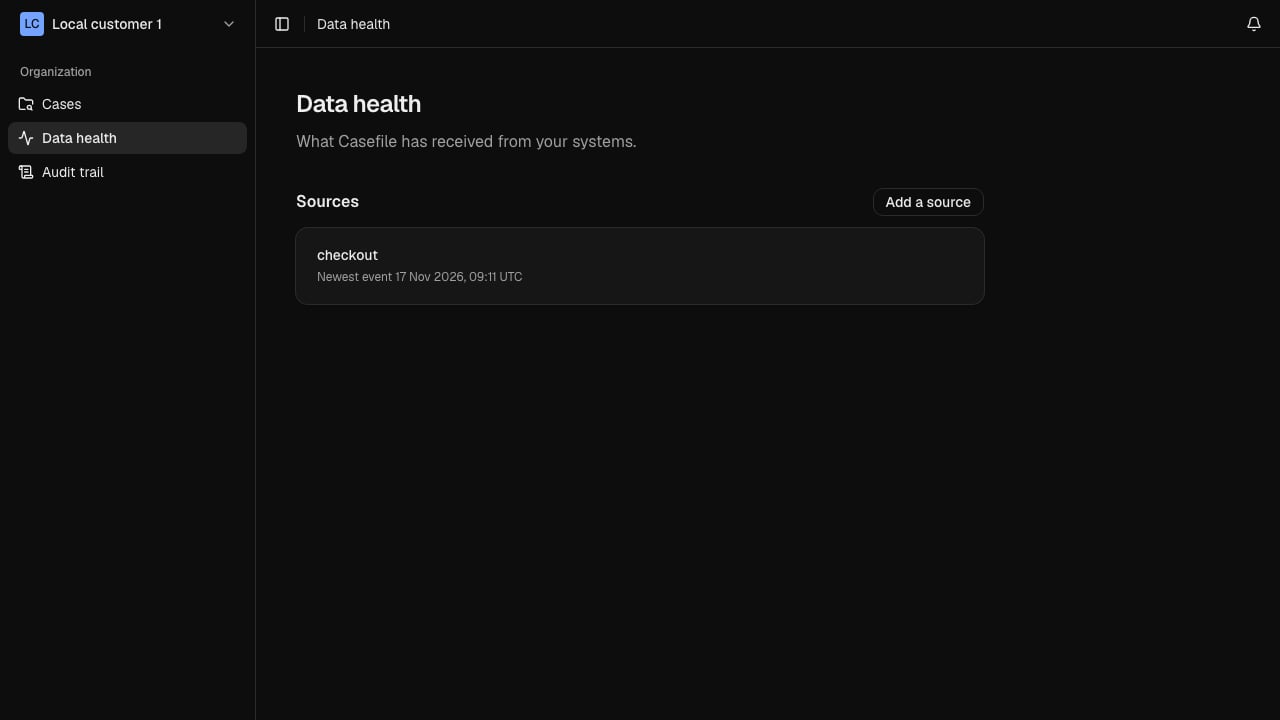
Data health lists checkout, so Casefile has your first event.
Next
- Event fields lists what else an event can carry, such as a value and tags.
- Limits and refusals says how many events your plan allows, and why the door may refuse one.